The Vessel Mandatory Document Template feature allows users to define and manage document requirements that are mandatory for a vessel. These templates help ensure required vessel documentation is properly defined, tracked, and consistently maintained across the fleet.
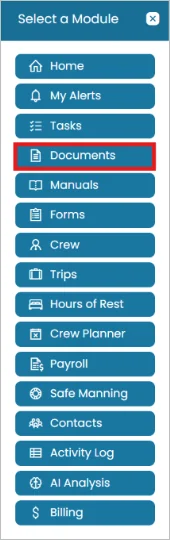
- Click on the Modules menu and select Documents.
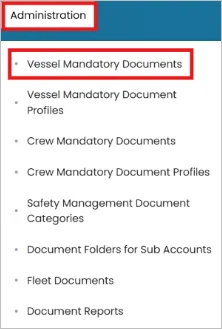
- In the top blue ribbon, click the Administration menu and select Vessel Mandatory Documents.
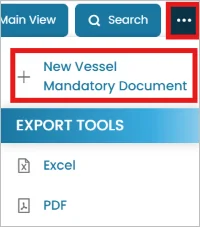
- Click the three-dots and select New Vessel Mandatory Document.
- Fill in any necessary details for this template.
- Safety Management Document -- Indicates whether the document is classified as a Safety Management Document.
- Folder -- Specifies the folder where the document is organized.
- Notes -- Allows you to add any relevant notes or additional information.
- Expiry Reminder -- Specifies how many days before the document expires, the notification should be sent.
- Required Expiry -- Indicates whether an expiration date must be provided when the document is uploaded.
- Survey Window -- Enables a survey window for the document. Refer to the "Defining Survey Windows for a Vessel Mandatory Document" article for instructions on configuring the survey window.
- Survey Due Reminder -- Specifies how many days before the survey due date the reminder should be sent.
- Required Survey Due -- Indicates whether a survey due date must be provided when the document is uploaded.
- Electronic Form -- Specifies the electronic form that must be completed, if required.
- Document Verification -- Enables verification of the document to confirm that the submitted document is valid and authentic.
- Required for All Vessels or Specific Vessels -- Defines whether the document is mandatory for all vessels or only for selected vessels.
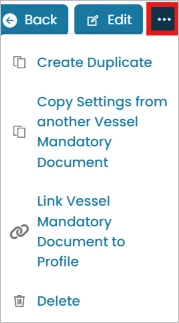
- After submission, you'll be directed to the Properties tab, where you can click the three-dots in the top right corner to:
- Create Duplicate -- Creates a copy of an existing Vessel Mandatory Document that can be used to create another document with similar settings.
- Copy Settings from Another Vessel Mandatory Document -- Copies the configuration and requirements from an existing mandatory document to reduce manual setup.
- Link Vessel Mandatory Document to Profile -- Links the mandatory document to a crew profile, allowing multiple documents to share the same triggers, requirements, and permissions.
Permissions Tab
- Go to the Permission tab.
- Click Edit Permissions in the top right corner.

- Control who can manage this document template and its associated documents for sub-accounts.
You can assign Read, Edit, Delete, or Verify permissions to:
- Fleet Account Users
- Sub-Account Users
- You can also Override Permissions of this master mandatory document in one of its instances.
To do this, go to the Permission Exceptions tab and click Override Permissions in the top right corner.

Was this article helpful?
Still need help?
Our support team will pick it up as a support ticket and reply by email.