If you've forgotten your password and you're using the MMV app, follow this flow. The app sends an authentication Key to your email; you enter that key in the app to continue the reset.
Start the reset
- On the app login screen, tap Forgot Password?
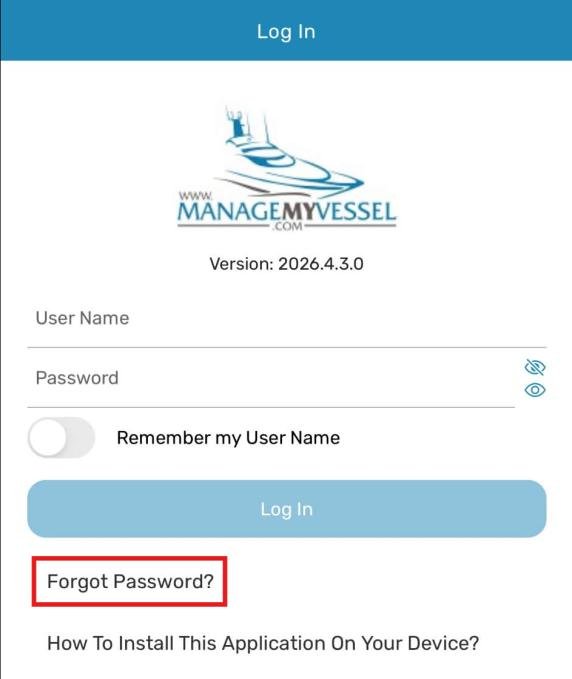
App Log In screen with Forgot Password? link highlighted - Pick the identification option that matches what you remember: Username, or First Name/Last Name/Vessel Name, or Email.
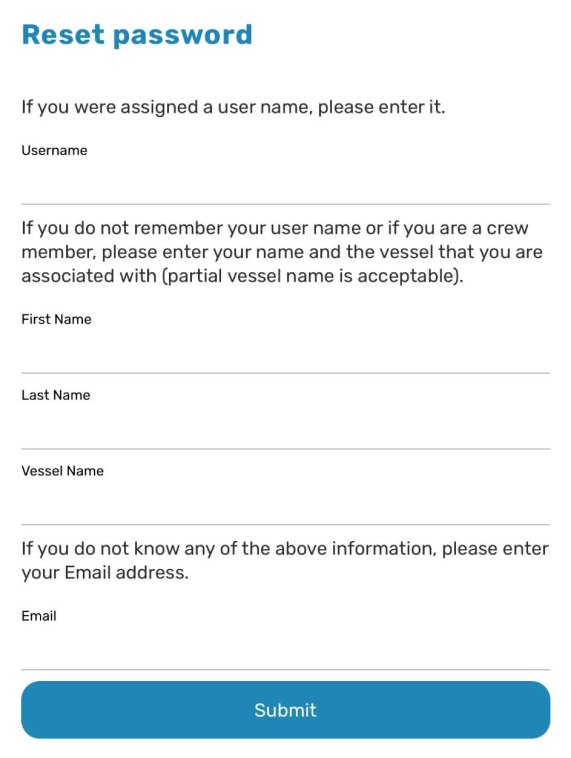
App Reset password form with Username, First Name, Last Name, Vessel Name, and Email fields
Enter the authentication key
- Check your email for a message from ManageMyVessel containing an authentication Key.
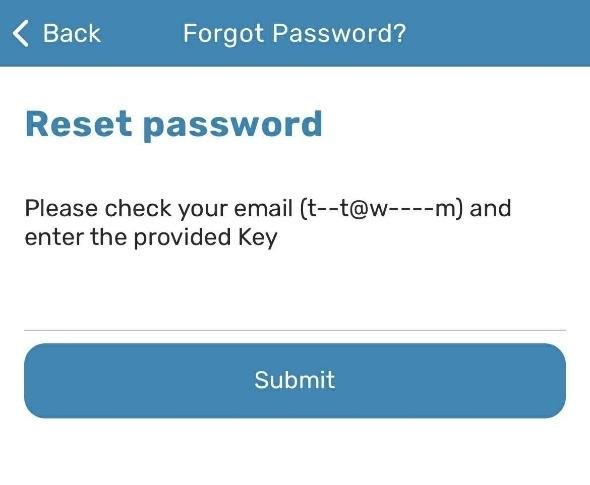
App Reset password screen prompting to check email and enter the provided Key - Enter the Key provided and click Submit. After entering the key, you'll be directed to a screen where you'll need to answer the security question and set a new password.
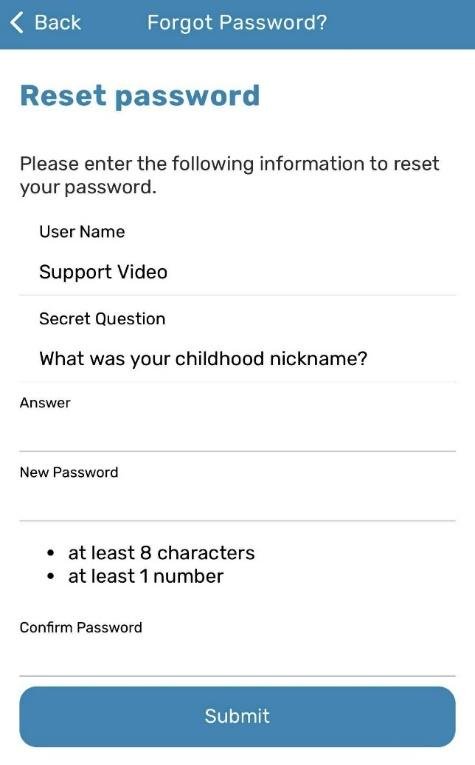
App Reset password screen with User Name, Secret Question, Answer, New Password, and Confirm Password fields
Common questions
The email with the key never arrived — what should I check?
Check your spam or junk folder. Also verify your authentication email is correct in your Account Settings (a Fleet administrator can confirm this).
How is this different from the Website flow?
The App sends a numeric/alphanumeric key you type into the app. The Website sends a clickable Reset link. Both flows achieve the same result.
What if I don't remember my security question answer?
A senior crew member or officer with the appropriate permissions on your vessel (typically the Captain, Officer, or another user granted the reset-password permission) can reset your password so you can log back in. If no one onboard has that permission, contact your Fleet administrator ashore. Once you're logged back in, go to Account Settings and update your security question and answer yourself — nobody else can change your security question or answer on your behalf.
Still need help?
Our support team will pick it up as a support ticket and reply by email.